How to Test Your Webcam Online (and Fix a Black Preview)
Check your camera in the browser in under a minute, read the resolution and frame-rate numbers properly, and fix the usual causes of a black picture.
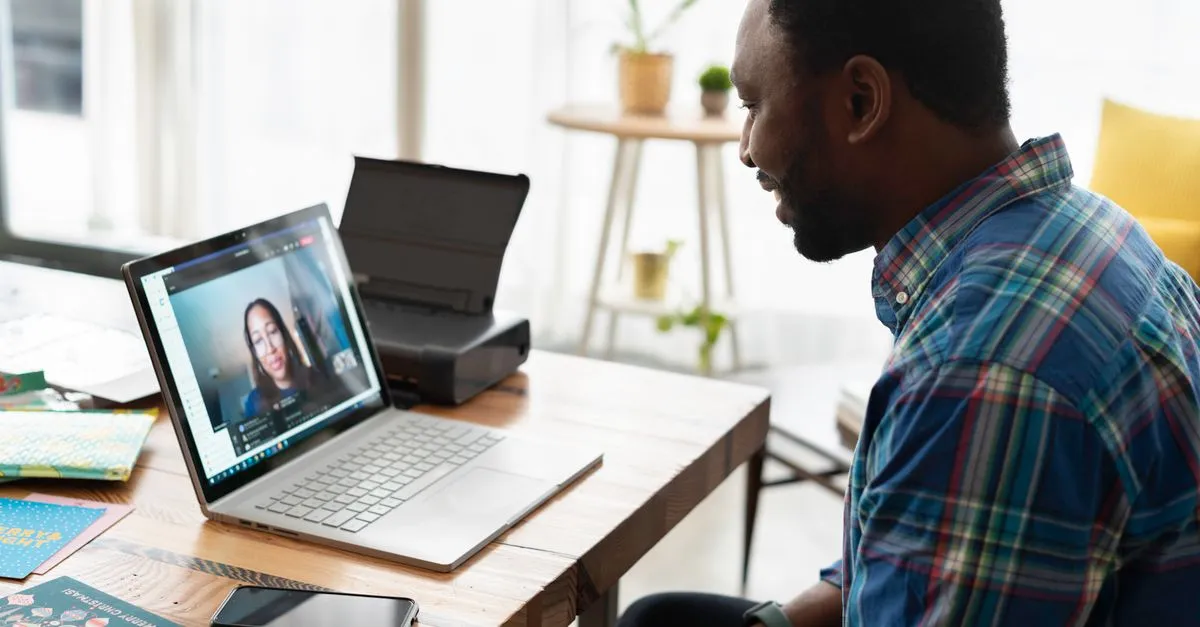
The worst time to discover your camera is broken is ninety seconds into a job interview. The second worst is when six people are already staring at a grey circle with your initials in it.
A browser Webcam Test settles the question before either of those happens. Click start, allow access, and either you appear in the preview or you don’t. That’s the whole test. What takes longer is understanding the numbers next to the picture, and knowing where to look when the picture never shows up.
Reading the numbers
The preview tells you the camera works. The panel underneath tells you how well.
Resolution is the first thing to check, and it’s often lower than the box promised. Most built-in laptop cameras cap out at 1280 × 720. Vendors love to advertise a webcam as “HD” and then ship a 720p sensor behind a plastic lens the size of a lentil. For calls it hardly matters. Zoom and Teams downscale you to something like 640 × 360 anyway unless you’re the active speaker.
Then there are two frame-rate readings, and the gap between them is the interesting part. The reported figure is what the driver claims. The measured figure counts frames the browser actually painted.
If the driver says 30 and the browser sees 15, your camera isn’t faulty. It’s dark. Webcams compensate for dim rooms by holding the shutter open longer, and a longer exposure means fewer frames per second — the same reason your phone photos go blurry indoors. Switch on a desk lamp, reload, and watch the measured number climb.
Aspect ratio matters less, but it’s worth a glance. If you see 4:3 instead of 16:9, the camera is cropping the sides off your frame, and you’ll appear boxed-in on a widescreen call.
When the preview stays black
Work down this list in order. The cause is almost always near the top.
- Check the privacy shutter first. Loads of laptops ship with a physical slider over the lens, small enough to nudge shut with a thumb while carrying the machine.
- Quit whatever else might be holding the camera. Zoom, Teams, Skype, Discord, and OBS all grab exclusive access and keep it while they’re running, even minimised in the tray. Closing the window often isn’t enough; quit the app.
- Look at your OS privacy settings. Windows: Settings → Privacy & security → Camera. macOS: System Settings → Privacy & Security → Camera. If your browser isn’t ticked there, no website will ever see the camera, however many permission prompts you accept.
- Undo a blocked browser permission. If you once clicked “Block” on this site, the browser remembers it forever. Click the padlock near the address bar, set Camera back to Allow, reload.
- Make sure it’s pointed at the right camera. With a laptop lid closed and an external monitor attached, the browser may still be asking for the built-in camera it can no longer see.
Still nothing after all five? Try a different USB port, ideally one on the machine itself rather than a hub or dock. Docks cause this more often than you’d expect, especially when several devices are sharing the bandwidth.
What happens to the video
Nothing leaves your computer. The stream goes straight from the camera into the page, and the snapshot is drawn onto a canvas in the tab’s memory. It’s saved only if you click download, and closing the tab wipes it. No upload, no account, no server in the middle — which is not something every site with “webcam test” in its title can honestly claim.
Two minutes before your next call, run the test and let someone else be the one asking whether their camera is on.