How to Create a QR Code for Free (and What to Put In It)
A practical guide to QR codes — what to encode, how to create them instantly in the browser, and tips for printing and sharing.
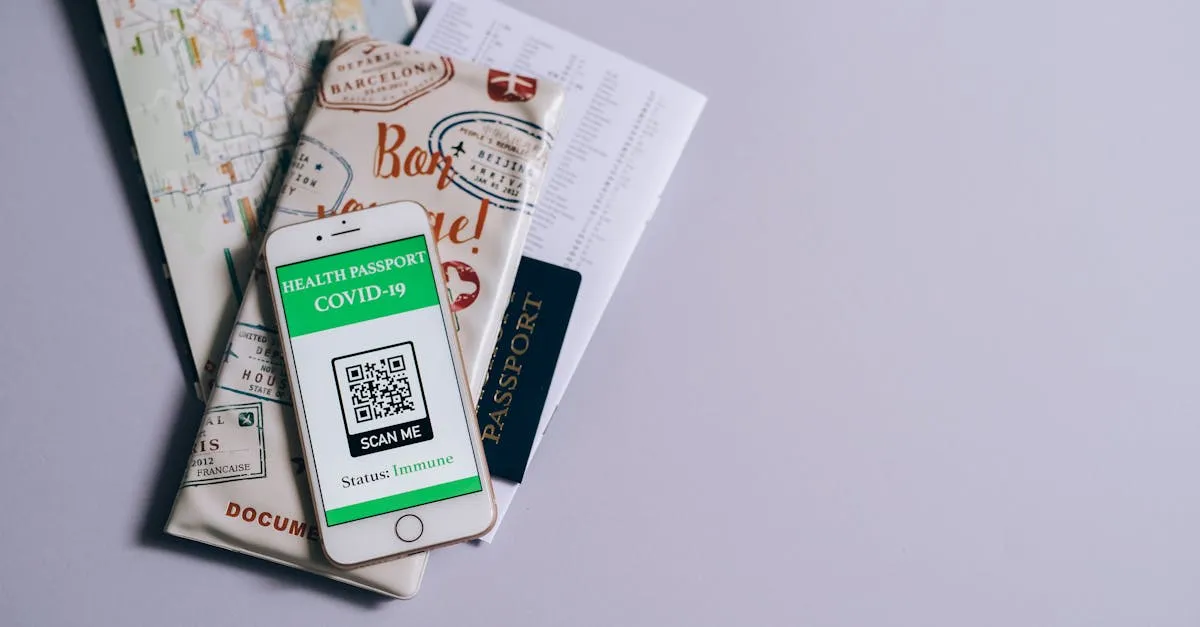
QR codes are everywhere — product packaging, restaurant menus, conference badges, bus stops. Creating one used to mean signing up for a paid service or downloading software. Not anymore. Here’s what you need to know, plus a free tool that generates QR codes entirely in your browser.
What can go inside a QR code?
A QR code is just a visual encoding of text. The scanner interprets that text depending on its format:
- URLs — the most common use. Paste
https://yoursite.comand the phone’s camera app opens the link directly. - Plain text — notes, serial numbers, instructions. Scanners display it as-is.
- Email addresses — prefix with
mailto:(e.g.mailto:[email protected]) to open a compose window. - Phone numbers — prefix with
tel:(e.g.tel:+441234567890) to prompt a call. - Wi-Fi credentials — format:
WIFI:S:NetworkName;T:WPA;P:yourpassword;;— phones auto-connect when scanned. - vCard contacts — a multi-line format that imports a contact directly into the phone’s address book.
The Wi-Fi one is underrated. If you run a café or host events, a QR code on the table beats typing out a password every time.
How to create one without signing up
Open the QR Code Generator and:
- Paste or type your URL or text into the input field.
- Click Generate — the QR code appears instantly.
- Click Download SVG to save a scalable vector file.
No account. No watermark. No expiry date. The result is a standard QR code that any modern smartphone can scan.
SVG or PNG — which one do you need?
The generator exports SVG, a vector format that scales to any size without going blurry. This matters more than people realize. A QR code on a business card (2 cm × 2 cm) needs the same sharpness as one blown up to A4 on a poster. SVG handles both from a single file, and the files stay small — typically 10–50 KB.
If you need PNG because a platform won’t accept SVG, open the SVG in a browser, right-click the image, and save as PNG. Or use a free editor like GIMP. Either works.
Tips for codes that actually scan
- Keep a quiet zone. A white border of at least 4 modules around the code is not optional — most scanners struggle without it.
- Minimum size is 2 cm × 2 cm. Smaller than that and you’ll get scan failures on lower-resolution phone cameras.
- Dark on light. Standard for a reason. Avoid grey on white, reversed colors, or anything that reduces contrast.
- Test the printed version. Always scan the physical output before running a large print job. Printing can introduce distortion that doesn’t show up on screen.
About error correction level M
Every QR code has a built-in error correction level. This tool uses level M (medium), which allows up to 15% of the code’s surface to be damaged or obscured while still scanning. It’s a sensible default — the code stays compact while tolerating minor wear, smudging, or partial logo overlap.
If you’re placing a logo inside the code, you’d want level Q (25%) or H (30%) for more tolerance. That’s a different tool for now.
Try the free QR Code Generator — paste any URL or text, download your QR code in seconds, no signup and nothing sent to a server.