How to Split a PDF Without Uploading It Anywhere
Extract pages, cut a document into singles, or chunk it — all offline in your browser, with nothing sent to a server.
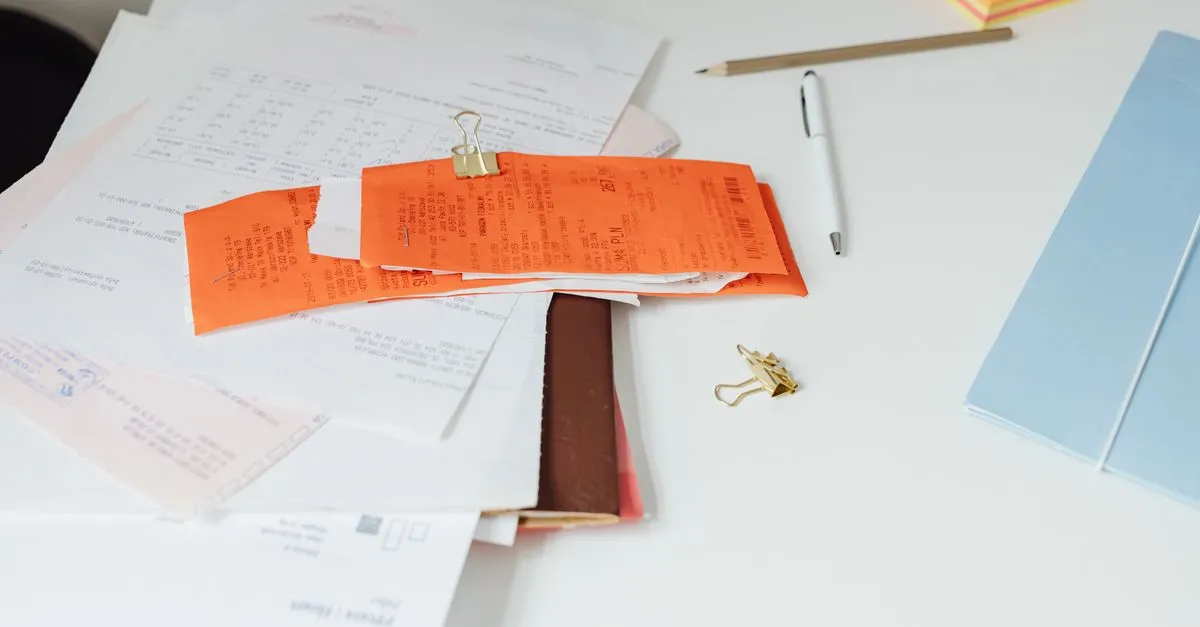
Most of the time you don’t need the whole PDF. You need pages 4 to 6 of a 60-page lease to send to your landlord. Or you scanned a stack of receipts into one file and now every one of them has to go to a different folder. Splitting a PDF sounds trivial, and it is — right up until you notice the tool you found wants you to upload the document first.
The PDF Splitter does the whole thing in your browser. The file is read into memory, the pages you asked for are copied into a new PDF, and you download the result. Nothing is sent anywhere.
Three ways to cut a PDF
There’s no single “split” that fits every job, so the tool gives you three:
- Extract pages — type a range like
1-3, 7, 10-12and get one PDF with exactly those pages. This is the one I reach for most: grab the signature page, pull the invoice out of a bank statement, keep the two pages of a manual that actually matter. - One file per page — every page becomes its own PDF. Handy for that scanned stack of receipts, or when a colleague asks for “each page separately” and means it.
- Chunks of N pages — break a long document into fixed-size pieces, say five pages each. Useful when an upload form caps the page count and you need to feed it in batches.
When the split produces more than one file, they come bundled in a single ZIP. Downloading forty separate PDFs one click at a time is nobody’s idea of a good afternoon.
Why “free” splitters ask for your file
Upload-based tools have to justify their server costs somehow. Some sell your attention with ads, some sell subscriptions, and a few are vaguer about what happens to the documents that pass through. The privacy policies tend to say files are deleted “within an hour” or “after processing,” which is a promise you can’t verify and have to take on faith.
The awkward part is what these files usually are. Splitting is a chore people do with contracts, medical results, pay slips, tax forms — the exact documents you’d least want sitting on a stranger’s disk, even briefly. A tool that never receives the file has nothing to leak, delete, or forget to delete.
How the pages stay intact
Under the hood, the splitter parses the PDF into its object graph and copies each page’s content stream byte-for-byte, filters and all. It doesn’t re-render anything to an image and re-encode it, which is where quality quietly disappears in weaker tools. A crisp 300-DPI scan comes out the other side identical to the way it went in. Page size and rotation ride along too.
A couple of honest limits. Encrypted PDFs are turned away with a message rather than mangled — open the file in a reader, save an unprotected copy, then split that. And bookmarks and form fields belong to the document as a whole, so they don’t survive being carved into pieces. The pages themselves, and everything drawn on them, do.
What about huge files?
There’s no page cap or size limit baked in. The real ceiling is your device’s memory, since the file lives in RAM while it’s worked on. A few hundred pages on a normal laptop is a non-event. A 2 GB scanned archive on an old phone might struggle — that’s physics, not a paywall.
Drop a PDF into the PDF Splitter, pick your pages, and download — the file never leaves your machine.