How to Combine Images into One PDF Without Uploading Them
Most image-to-PDF converters send your files to a server first. The browser can do the whole job locally — here's how, and what settings matter.
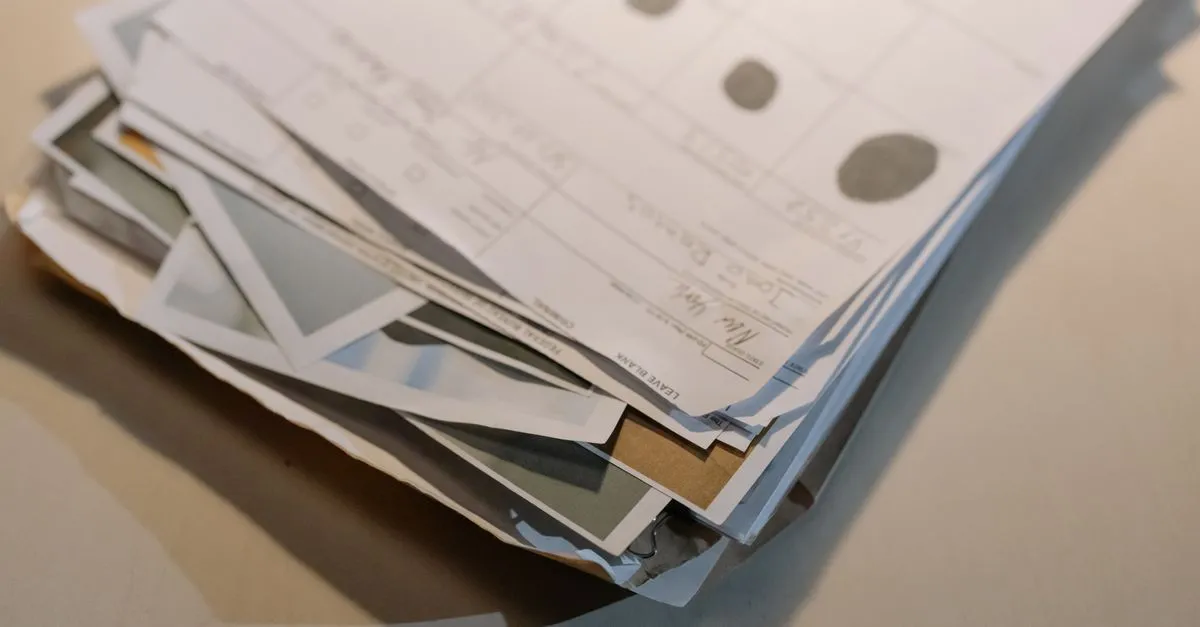
The request usually arrives in some official form: “Please send all pages as a single PDF file.” What you actually have is four phone photos of a rental contract, or a folder of receipts, or two sides of an ID card. Images in, one PDF out — it’s one of the most common file chores there is.
And the standard way to do it is strange, if you stop to think. You take documents that are private almost by definition and upload them to a converter site you found thirty seconds ago.
Where your files go on a typical converter
Most image-to-PDF sites work server-side: your files travel to their machines, get converted there, and come back as a download link. The popular services promise deletion — iLovePDF says files are removed after a couple of hours, Smallpdf after one. Maybe so. You have no way to check, and the upload itself already happened over infrastructure you don’t control.
For a meme this doesn’t matter. For a passport scan, a signed contract, or a child’s medical form, “trust us, we delete it” is a weak answer when there’s an alternative that never asks the question.
The browser doesn’t need the server
Here’s the part I find satisfying: PDF has supported embedded JPEG images natively since the format’s early days. A PDF page showing a photo is, at the byte level, mostly just the JPEG file wrapped in a small amount of PDF bookkeeping — an object saying “this is an image, draw it at this size on this page.”
That means a converter doesn’t need image-processing servers at all. Your browser already decodes JPG, PNG, and WebP; JavaScript can write the PDF wrapper around them. The Image to PDF tool does exactly this — you can load the page, switch off your Wi‑Fi, and it still converts, because there is nothing to send.
Fit to image, or A4?
The one real decision is page size, and it depends on where the PDF is going.
- Fit to image makes each page exactly the shape of its picture. Best for screenshots, digital artwork, and anything read on a screen — no white bars, no cropping.
- A4 or Letter puts each image centered on a standard sheet. Pick this when someone will print the file: scanned documents, forms, contracts. A margin keeps content clear of printer edges.
If you’re worried about print quality: an A4 page at 300 DPI works out to roughly 2480×3508 pixels. Any recent phone photo clears that comfortably.
Small details that save a second attempt
Page order is the order of the list, so arrange files before converting — the arrows exist because ten files named IMG_4237.jpg never sort themselves the way you want.
Transparent PNG areas come out white. PDF pages here are built on JPEG, which has no alpha channel, so a transparent logo lands on a white background. For photos and scans this changes nothing visible.
Very large photos are scaled down to 4096 pixels on the long side before embedding. That keeps a twenty-photo PDF from ballooning past what email accepts, and it’s still well above the 300 DPI print bar from a moment ago.
Next time the form asks for “a single PDF”
Drop your images into the Image to PDF converter, drag them into order, pick fit-to-image or A4, and download the result. No account, no watermark, and the documents never leave your machine.