How to Record Your Screen in a Browser Tab, With Sound
Capture a screen, window, or tab without installing anything, get the audio right the first time, and know which browser quietly drops half of it.
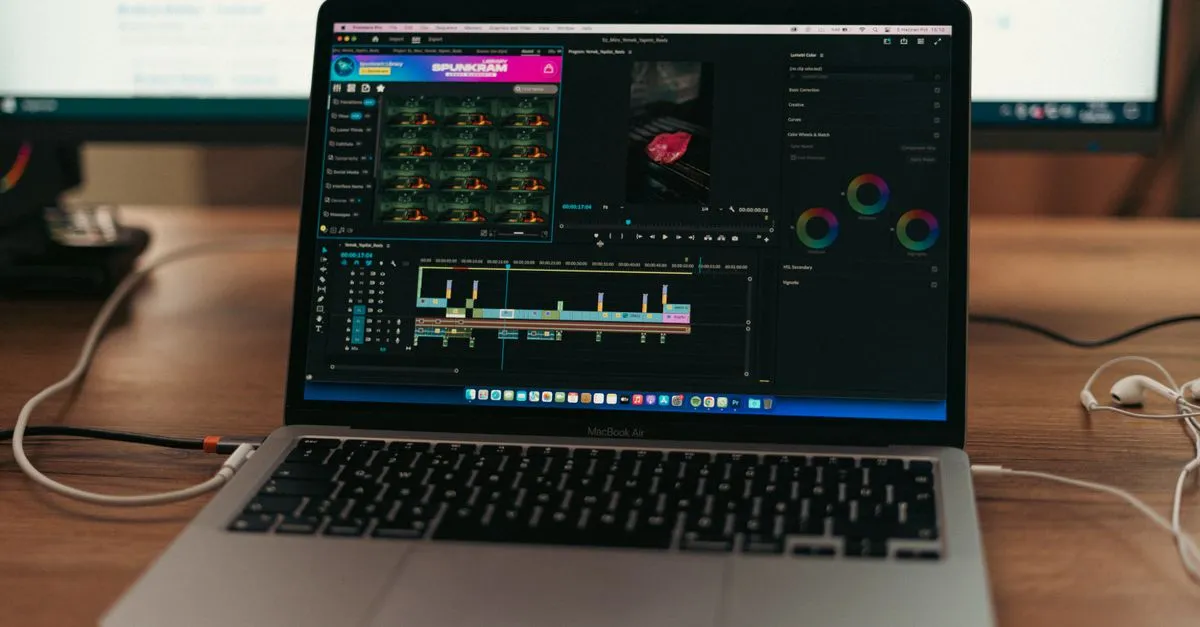
Someone asks you to send a quick walkthrough of a bug. Three minutes of clicking, maybe some narration. You open a search, and the first four results want you to install a 120 MB desktop app, create an account, and accept a five-minute cap on the free tier with a logo burned into the corner.
Chrome has been able to do this since version 74, in 2019. The API is getDisplayMedia, and that is what the Screen Recorder calls. Pick a source, talk, stop, download.
Screen, window, or tab — the choice matters more than you’d think
The browser’s picker offers all three, and people habitually grab Entire Screen because it feels safest. It’s usually the worst option.
Capture the whole screen and you also capture whatever notification slides in from the corner at minute two. Window capture follows one application and hides everything else, including your other monitor. Tab capture is the sharpest of the three: the browser has the page’s actual render tree, so text stays crisp instead of being downscaled from your display’s native resolution.
There’s one more reason to prefer tab capture, and it’s the audio.
The audio catch nobody warns you about
Two completely different sources get confused here. Your microphone is one. The sound your computer is playing is the other. They arrive through separate permissions and separate APIs.
Microphone capture works everywhere. System and tab audio is where it falls apart:
- Chrome and Edge on Windows: tab audio works, and system audio works for full-screen capture if you tick the box in the picker.
- Chrome and Edge on macOS: no system audio at all. The OS doesn’t expose an output loopback to browsers. Tab audio still works.
- Firefox: neither. You get video and microphone.
- Safari: screen capture works, audio sharing doesn’t.
So if you’re on a Mac recording a Zoom call in the browser, tick both boxes and hope the tab is the right kind — or accept that only your voice makes it in. That limitation belongs to macOS, not to any particular recorder, which is why the paid desktop apps ship a kernel-level audio driver to work around it.
When both mic and tab audio are on, the recorder mixes them into one track through a Web Audio destination node. One file, both voices, no post-production.
Why the file is WebM and not MP4
Chrome, Edge, and Firefox all encode to WebM, usually VP9 with Opus. There’s no MP4 button because producing one in the browser means downloading FFmpeg compiled to WebAssembly and re-encoding, which for a twenty-minute clip is a long wait and a lot of laptop fan.
In practice it rarely matters. YouTube, Drive, Slack, Discord, and Notion all take WebM directly. VLC plays it. Premiere and Resolve import it. If you genuinely need MP4 for a client, one ffmpeg -i in.webm -c copy out.mp4 on your own machine does it in seconds.
Plan for the size
At 1080p and 30 fps you’re looking at roughly 30 MB per minute. A ten-minute demo lands near 300 MB, which is fine. A forty-minute training session is over a gigabyte sitting in your browser’s memory until you hit Download, and that’s where tabs start behaving badly. For anything long, drop to 720p or record in chapters.
And download before you close the tab. There’s no server holding a copy, which is the point, but it also means a stray refresh takes the recording with it. Grab your file, then record the next one.